> ## Documentation Index
> Fetch the complete documentation index at: https://docs.myresearchlab.app/llms.txt
> Use this file to discover all available pages before exploring further.
# Participants
> Recruit and manage participants from integrated providers, track compensation, and maintain quality across your studies.
Manage where your participants come from, keep tabs on compensation, build reusable cohorts, and flag low-quality responses across all your studies in one place.
 ## The five tabs
### Connections
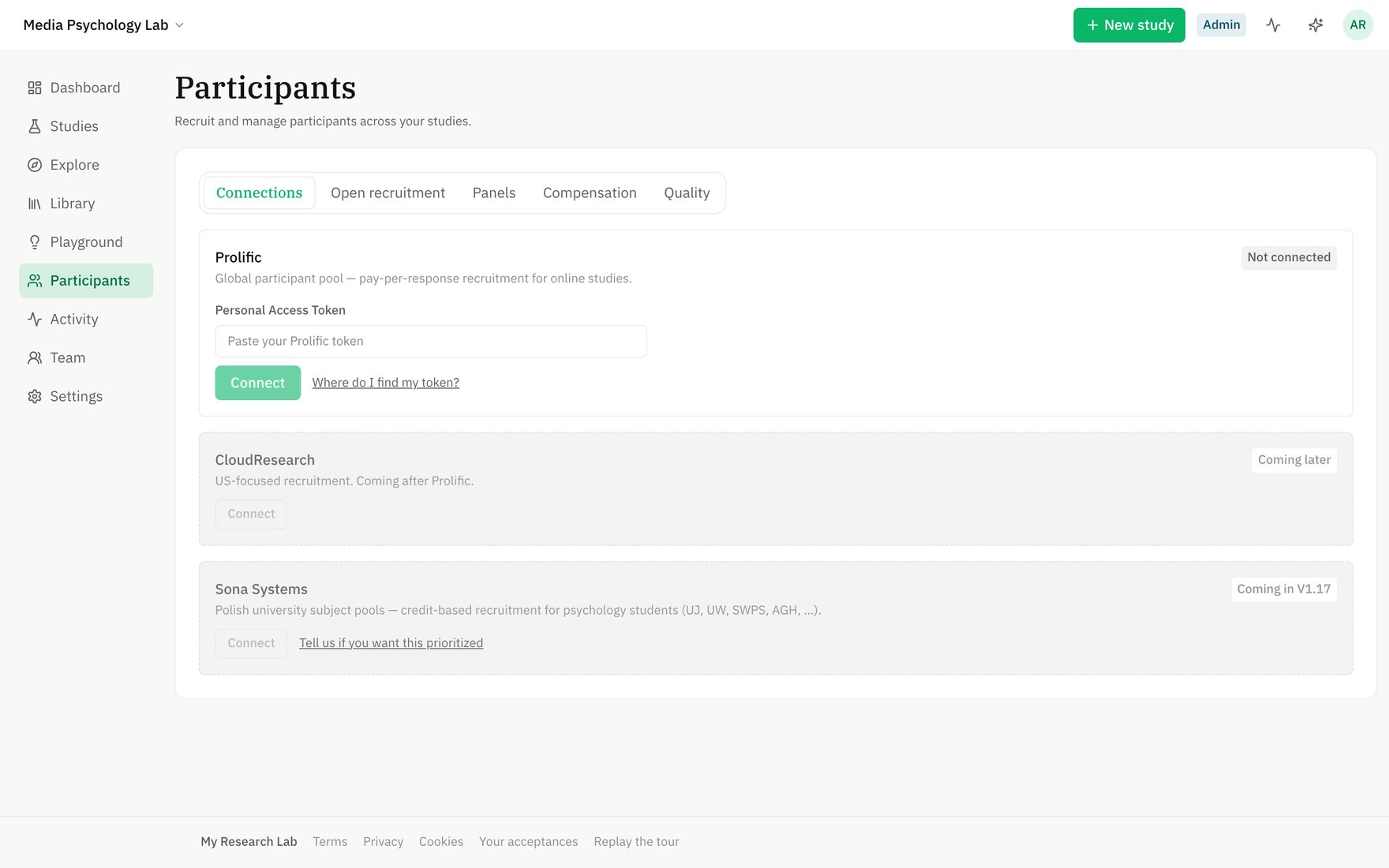
Connect recruitment providers so you can launch studies on their participant pools. Each provider is authenticated once per workspace — all studies in the workspace draw from the same connection.
Currently live: **Prolific** (global participant pool, pay-per-response). Coming soon: **CloudResearch** (US-focused) and **Sona Systems** (credit-based recruitment for university psychology departments).
To connect a provider, paste your Personal Access Token (PAT) from your provider account. The app stores the token securely and uses it to access your account and push study details on-demand.
**Live updates** — once connected, you can enable webhooks so Prolific notifies the app the moment submissions arrive or study status changes. When on, participant counts and recruitment progress update without a page refresh. When off, the app polls Prolific every \~10 minutes and reconciles state on page load.
### Open recruitment
A read-only provider-side view of every study currently recruiting on Prolific in your workspace. For each study, you see:
* Submission counts broken down by status: **Started**, **Awaiting review**, **Approved**, **Rejected**, **Timed out**
* The reward amount and allocation (how many spots are filled)
* Links to manage the study on Prolific or jump to the [Run stage](/builder/study-workspace) in the app
This mirrors recruitment health and response flow from the provider's perspective. (For your own-side recruitment health — drop-off, time-to-completion — see the [Run stage](/builder/study-workspace).)
### Panels
Panels are **workspace-scoped cohorts** of past participants, identified by their anonymous provider ID. Use panels to re-recruit known participants in a new study or exclude them to prevent cross-contamination.
Create a new panel by name and description, then add members by bulk-importing submissions from a study you've already run. When adding members, you can filter by completion status (**Completed** — approved + awaiting review; **Approved only**; **Everyone who started**).
Members are always displayed by opaque ID — the app never exposes personally identifiable information. Each member's record notes which study they first appeared in.
Delete a panel to remove its membership tracking; the participants themselves are unaffected.
### Compensation
A **read-only mirror** of participant spend synced from your provider (Prolific charges you directly, not through the app). All figures are grouped by currency — no FX blending.
**Spend overview:**
* Total spend (all-time, last 30 days) broken down by currency
* Count of participants paid
* Average cost per participant
**By study** — a table showing reward, bonus, and total cost per study.
**Last 6 months** — a bar chart of spend over time.
**Recent payouts** — the latest 50 transactions, each recording when the payment was made, which study it belongs to, whether it was a reward or bonus, the amount, and who approved it (manually by a team member, or automatically on provider).
**Monthly budget (owner/admin only):** Set an optional advisory budget limit and alert threshold. When this month's spending crosses the threshold, the app flags a warning at the top of the page. The budget is advisory only — nothing is blocked, and your provider charges you regardless.
**Auto-approval (owner/admin only):** When enabled, submissions with no open quality flags are automatically approved once they've been awaiting review for a set number of hours (default 24). Flagged or manually rejected submissions always stay manual. This keeps the approval queue moving without sacrificing oversight.
### Quality
Cross-study submission quality review and response management. Flag patterns — fast completion, straight-lining, duplicate participants, failed attention checks, possible spam — are surfaced in a centralized queue alongside inline response previews so you can make informed decisions.
**Flags and resolution:**
* Each flag shows its **kind** (e.g., "Straight-lining"), **severity** (high/medium/low), the study it came from, the participant's opaque ID, and any detail
* Expand any flag to view the participant's response — all item answers are shown so you can spot the problem yourself
* Resolve a flag by approving (marks them complete on the provider — they are paid), rejecting (marks incomplete on the provider — they are not paid, and Prolific notifies them with your reason), sending a bonus, or dismissing (records your decision, no payment action)
**Bulk actions:** Select multiple flags at once and resolve them all together (approve, reject, or dismiss).
**Re-scan:** Manually trigger a quality scan of recent submissions to find new flags. (The app also scans automatically as studies collect responses.)
**Two tabs:**
* **Needs review** — open flags awaiting your decision
* **Resolved** — flags you've already approved, rejected, dismissed, or bonused
All money operations (approve, reject, bonus) are one-click on Prolific — the app asks for confirmation before executing, but your provider handles the actual payment. Never manually approve or reject a submission on the provider's side while it's flagged here; use the Quality tab to stay in sync.
## Role-based access
* **Owners and admins** can connect/disconnect providers, set budgets, enable auto-approval, and resolve quality flags
* **Members** can view all Participants tabs but cannot make changes
* **Viewers** can see Participants but have no edit access
## The five tabs
### Connections
Connect recruitment providers so you can launch studies on their participant pools. Each provider is authenticated once per workspace — all studies in the workspace draw from the same connection.
Currently live: **Prolific** (global participant pool, pay-per-response). Coming soon: **CloudResearch** (US-focused) and **Sona Systems** (credit-based recruitment for university psychology departments).
To connect a provider, paste your Personal Access Token (PAT) from your provider account. The app stores the token securely and uses it to access your account and push study details on-demand.
**Live updates** — once connected, you can enable webhooks so Prolific notifies the app the moment submissions arrive or study status changes. When on, participant counts and recruitment progress update without a page refresh. When off, the app polls Prolific every \~10 minutes and reconciles state on page load.
### Open recruitment
A read-only provider-side view of every study currently recruiting on Prolific in your workspace. For each study, you see:
* Submission counts broken down by status: **Started**, **Awaiting review**, **Approved**, **Rejected**, **Timed out**
* The reward amount and allocation (how many spots are filled)
* Links to manage the study on Prolific or jump to the [Run stage](/builder/study-workspace) in the app
This mirrors recruitment health and response flow from the provider's perspective. (For your own-side recruitment health — drop-off, time-to-completion — see the [Run stage](/builder/study-workspace).)
### Panels
Panels are **workspace-scoped cohorts** of past participants, identified by their anonymous provider ID. Use panels to re-recruit known participants in a new study or exclude them to prevent cross-contamination.
Create a new panel by name and description, then add members by bulk-importing submissions from a study you've already run. When adding members, you can filter by completion status (**Completed** — approved + awaiting review; **Approved only**; **Everyone who started**).
Members are always displayed by opaque ID — the app never exposes personally identifiable information. Each member's record notes which study they first appeared in.
Delete a panel to remove its membership tracking; the participants themselves are unaffected.
### Compensation
A **read-only mirror** of participant spend synced from your provider (Prolific charges you directly, not through the app). All figures are grouped by currency — no FX blending.
**Spend overview:**
* Total spend (all-time, last 30 days) broken down by currency
* Count of participants paid
* Average cost per participant
**By study** — a table showing reward, bonus, and total cost per study.
**Last 6 months** — a bar chart of spend over time.
**Recent payouts** — the latest 50 transactions, each recording when the payment was made, which study it belongs to, whether it was a reward or bonus, the amount, and who approved it (manually by a team member, or automatically on provider).
**Monthly budget (owner/admin only):** Set an optional advisory budget limit and alert threshold. When this month's spending crosses the threshold, the app flags a warning at the top of the page. The budget is advisory only — nothing is blocked, and your provider charges you regardless.
**Auto-approval (owner/admin only):** When enabled, submissions with no open quality flags are automatically approved once they've been awaiting review for a set number of hours (default 24). Flagged or manually rejected submissions always stay manual. This keeps the approval queue moving without sacrificing oversight.
### Quality
Cross-study submission quality review and response management. Flag patterns — fast completion, straight-lining, duplicate participants, failed attention checks, possible spam — are surfaced in a centralized queue alongside inline response previews so you can make informed decisions.
**Flags and resolution:**
* Each flag shows its **kind** (e.g., "Straight-lining"), **severity** (high/medium/low), the study it came from, the participant's opaque ID, and any detail
* Expand any flag to view the participant's response — all item answers are shown so you can spot the problem yourself
* Resolve a flag by approving (marks them complete on the provider — they are paid), rejecting (marks incomplete on the provider — they are not paid, and Prolific notifies them with your reason), sending a bonus, or dismissing (records your decision, no payment action)
**Bulk actions:** Select multiple flags at once and resolve them all together (approve, reject, or dismiss).
**Re-scan:** Manually trigger a quality scan of recent submissions to find new flags. (The app also scans automatically as studies collect responses.)
**Two tabs:**
* **Needs review** — open flags awaiting your decision
* **Resolved** — flags you've already approved, rejected, dismissed, or bonused
All money operations (approve, reject, bonus) are one-click on Prolific — the app asks for confirmation before executing, but your provider handles the actual payment. Never manually approve or reject a submission on the provider's side while it's flagged here; use the Quality tab to stay in sync.
## Role-based access
* **Owners and admins** can connect/disconnect providers, set budgets, enable auto-approval, and resolve quality flags
* **Members** can view all Participants tabs but cannot make changes
* **Viewers** can see Participants but have no edit access