> ## Documentation Index
> Fetch the complete documentation index at: https://docs.myresearchlab.app/llms.txt
> Use this file to discover all available pages before exploring further.
# Researcher profiles
> Make your research discoverable—build a public profile, follow peers, and find studies by research area.
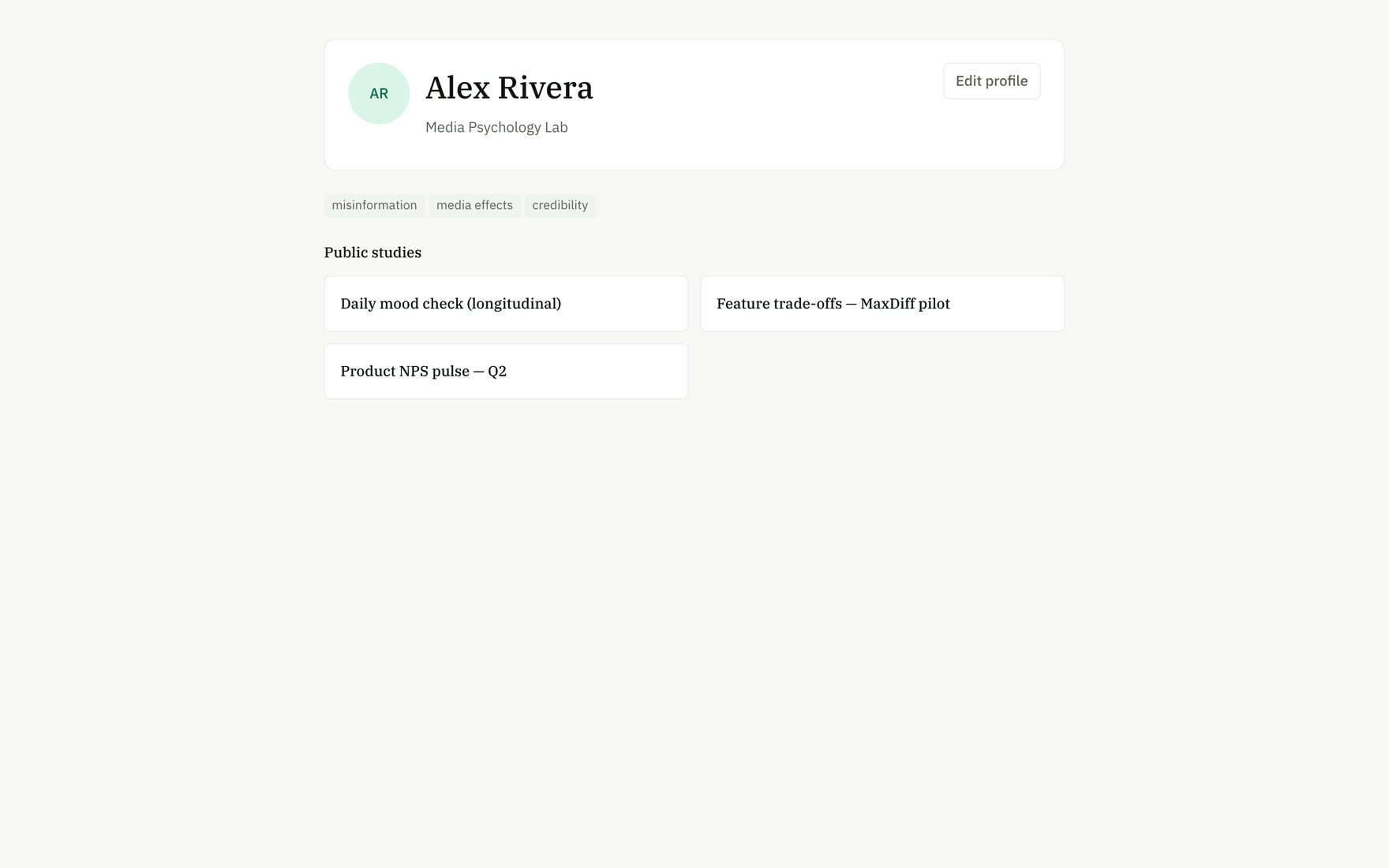
Your public profile on My Research Lab is a landing page that showcases your studies, research areas, and published work. It's opt-in, so you control exactly what appears online.
 ## Turn on your public profile
1. Go to **Settings → Account → Profile**
2. Check **Make my profile public**
3. Pick a **handle** — your unique URL will be `myresearchlab.app/u/your-handle`
4. (Optional) Add a bio, upload a photo, and link your published articles
5. Click **Save**
Once public, your profile is live and anyone can visit it, even without an account.
Off by default. Only the studies and templates you've already marked public appear on your profile — your workspace activity is never shown. You can turn your profile back off anytime.
## What your profile shows
A public researcher profile displays:
* **Identity**: Your name, affiliation, and research areas
* **Bio**: A short about section (up to 1000 characters)
* **Photo**: A public avatar (falls back to your account photo if not set)
* **Published articles**: Links to papers you've already published elsewhere
* **Public studies**: All studies you've marked public + replication count for each
* **Templates**: Public workspace templates you've created and their use count
* **Links**: Your ORCID, website, and Google Scholar profile (if provided in Settings)
## Build your profile while editing
All the profile fields live in **Settings → Account → Profile**:
| Field | Used where |
| ------------------ | --------------------------------------------------- |
| **Display name** | Public profile, author byline, OSF preregistrations |
| **Full name** | OSF preregistration metadata, author byline |
| **Affiliation** | Public profile, OSF metadata |
| **Research areas** | Public profile (as tags), discovery filters |
| **ORCID iD** | Public profile link, OSF metadata |
| **Website** | Public profile link |
| **Google Scholar** | Public profile link |
Research areas (up to 20) let other researchers find you through shared interests. They show as chips on your public profile.
## Share your profile
Once your profile is live, you'll see a "View your public profile" link in Settings. Share that URL with collaborators, put it in your bio, or include it in papers. Your profile is fully public — no sign-up required to view it.
## Discover researchers
### Browse the researchers directory
Go to **Researchers** in the main menu to see all public profiles on My Research Lab. Find researchers by:
* **Studying the cards**: Each researcher card shows their name, affiliation, research areas (up to 3), study count, and follower count
* **Clicking through**: Cards link to full public profiles
### Follow researchers
On any public profile, click **Follow** (or sign up first if you don't have an account) to:
* **See their activity** in your Activity feed (under "Follows")
* **Stay updated** when they publish new studies, templates, or forked replications
* **Discover studies faster** without browsing the Browse directory
You can follow researchers, studies, specific research-area tags, and reusable modules. Manage all your follows in your **Activity** feed under the "Following" list.
Following a researcher is the fastest way to stay in sync with their work — their published studies, replications, and new templates all surface in your feed.
## Edit or hide your profile
Anytime, go back to **Settings → Account → Profile** to:
* **Update fields**: Refresh your bio, research areas, links, or photo
* **Turn it off**: Uncheck **Make my profile public** and your profile disappears (the URL will 404)
* **Change your handle**: Available handles are live-checked as you type
Hiding your profile doesn't delete any studies or templates — they just stop being discoverable through the researchers directory.
## Privacy & discoverability
* **Your workspace is never public** — only studies and templates you've explicitly marked public appear
* **No one can see your name or identity** unless you turn on a public profile
* **Activity feed is personal** — your follow list, studies in progress, and responses are private to you
* **Researchers directory is opt-in** — researchers appear here only if they've turned on their public profile
## Turn on your public profile
1. Go to **Settings → Account → Profile**
2. Check **Make my profile public**
3. Pick a **handle** — your unique URL will be `myresearchlab.app/u/your-handle`
4. (Optional) Add a bio, upload a photo, and link your published articles
5. Click **Save**
Once public, your profile is live and anyone can visit it, even without an account.
Off by default. Only the studies and templates you've already marked public appear on your profile — your workspace activity is never shown. You can turn your profile back off anytime.
## What your profile shows
A public researcher profile displays:
* **Identity**: Your name, affiliation, and research areas
* **Bio**: A short about section (up to 1000 characters)
* **Photo**: A public avatar (falls back to your account photo if not set)
* **Published articles**: Links to papers you've already published elsewhere
* **Public studies**: All studies you've marked public + replication count for each
* **Templates**: Public workspace templates you've created and their use count
* **Links**: Your ORCID, website, and Google Scholar profile (if provided in Settings)
## Build your profile while editing
All the profile fields live in **Settings → Account → Profile**:
| Field | Used where |
| ------------------ | --------------------------------------------------- |
| **Display name** | Public profile, author byline, OSF preregistrations |
| **Full name** | OSF preregistration metadata, author byline |
| **Affiliation** | Public profile, OSF metadata |
| **Research areas** | Public profile (as tags), discovery filters |
| **ORCID iD** | Public profile link, OSF metadata |
| **Website** | Public profile link |
| **Google Scholar** | Public profile link |
Research areas (up to 20) let other researchers find you through shared interests. They show as chips on your public profile.
## Share your profile
Once your profile is live, you'll see a "View your public profile" link in Settings. Share that URL with collaborators, put it in your bio, or include it in papers. Your profile is fully public — no sign-up required to view it.
## Discover researchers
### Browse the researchers directory
Go to **Researchers** in the main menu to see all public profiles on My Research Lab. Find researchers by:
* **Studying the cards**: Each researcher card shows their name, affiliation, research areas (up to 3), study count, and follower count
* **Clicking through**: Cards link to full public profiles
### Follow researchers
On any public profile, click **Follow** (or sign up first if you don't have an account) to:
* **See their activity** in your Activity feed (under "Follows")
* **Stay updated** when they publish new studies, templates, or forked replications
* **Discover studies faster** without browsing the Browse directory
You can follow researchers, studies, specific research-area tags, and reusable modules. Manage all your follows in your **Activity** feed under the "Following" list.
Following a researcher is the fastest way to stay in sync with their work — their published studies, replications, and new templates all surface in your feed.
## Edit or hide your profile
Anytime, go back to **Settings → Account → Profile** to:
* **Update fields**: Refresh your bio, research areas, links, or photo
* **Turn it off**: Uncheck **Make my profile public** and your profile disappears (the URL will 404)
* **Change your handle**: Available handles are live-checked as you type
Hiding your profile doesn't delete any studies or templates — they just stop being discoverable through the researchers directory.
## Privacy & discoverability
* **Your workspace is never public** — only studies and templates you've explicitly marked public appear
* **No one can see your name or identity** unless you turn on a public profile
* **Activity feed is personal** — your follow list, studies in progress, and responses are private to you
* **Researchers directory is opt-in** — researchers appear here only if they've turned on their public profile