> ## Documentation Index
> Fetch the complete documentation index at: https://docs.myresearchlab.app/llms.txt
> Use this file to discover all available pages before exploring further.
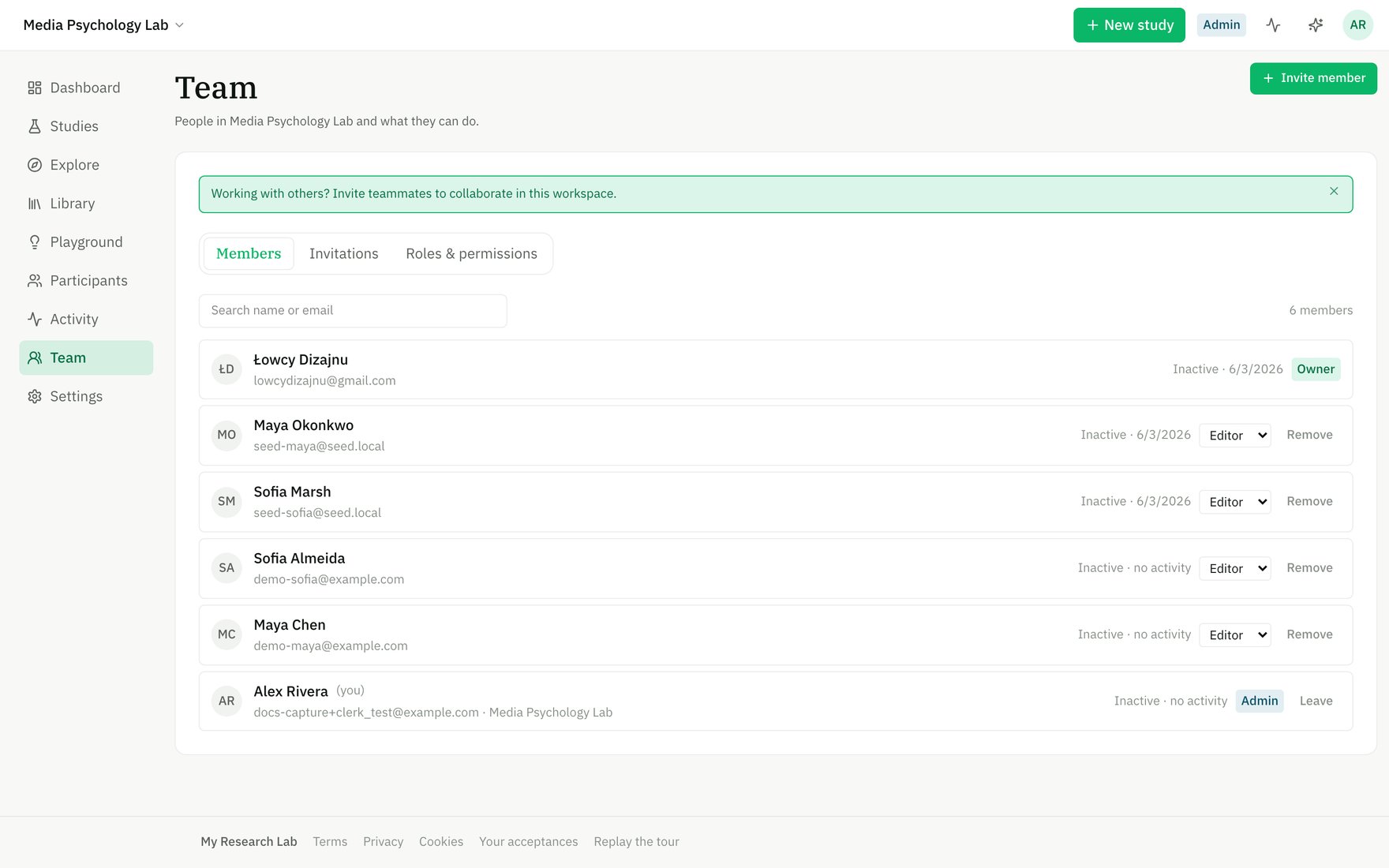
# Team
> Invite workspace members and manage their roles.
A **workspace** is a collaborative space where your team works on studies together. Every member has a role that controls what they can see and do.
 ## The four roles
Each role unlocks different capabilities across the workspace:
| Role | Create & edit studies | Manage team | View results | Access settings |
| ---------- | --------------------- | ----------- | ------------ | --------------- |
| **Owner** | Yes | Yes | Yes | Yes |
| **Admin** | Yes | Yes | Yes | Yes |
| **Editor** | Yes | No | Yes | No |
| **Viewer** | No | No | Yes | No |
**Owner** and **Admin** can both manage the team (invite, remove, change roles, transfer ownership). The difference: only Owners can promote someone to Owner or Admin, and Admins can only invite up to Editor. A workspace must always have at least one Owner.
## Invite members by email
From the **Team** page, click **Invite member** (Owners and Admins only).
* Paste email addresses — one per line or comma-separated.
* Choose the role (Owners can grant any role; Admins can invite up to Editor).
* Add an optional personal message.
* Click **Send invitation**.
An invitation link is sent to each email. When they sign up or log in, they'll be added to the workspace automatically.
Invitations expire if unused. You can resend an invitation from the **Invitations** tab to reset its age, or revoke it entirely.
## Manage member roles
From the **Members** tab, Owners and Admins can change a member's role directly by clicking the role chip next to their name. Changes take effect immediately.
**Demoting the last Owner is blocked** — transfer ownership first if you need to step down.
## Transfer ownership
Only the current Owner can transfer ownership. This is an atomic hand-off:
1. From the **Members** tab, find the member you want to promote.
2. Click the menu (⋯) and select **Transfer ownership to this member**.
3. You become Admin, and they become Owner.
This preserves the always-≥1-owner rule and is recorded in the workspace activity log.
## Remove members
Owners and Admins can remove members by clicking the menu (⋯) and selecting **Remove**. Removed members can no longer access the workspace, but their past activity and comments stay attributed (tombstoned).
**You can't remove yourself** — use **Leave workspace** from the workspace menu instead.
**Admins can only remove Editors and Viewers**, not other Admins or the Owner.
## The Roles & permissions reference
The **Roles & permissions** tab shows a detailed matrix of what each role can do — handy to share with your team or check before inviting someone at a specific level.
## The four roles
Each role unlocks different capabilities across the workspace:
| Role | Create & edit studies | Manage team | View results | Access settings |
| ---------- | --------------------- | ----------- | ------------ | --------------- |
| **Owner** | Yes | Yes | Yes | Yes |
| **Admin** | Yes | Yes | Yes | Yes |
| **Editor** | Yes | No | Yes | No |
| **Viewer** | No | No | Yes | No |
**Owner** and **Admin** can both manage the team (invite, remove, change roles, transfer ownership). The difference: only Owners can promote someone to Owner or Admin, and Admins can only invite up to Editor. A workspace must always have at least one Owner.
## Invite members by email
From the **Team** page, click **Invite member** (Owners and Admins only).
* Paste email addresses — one per line or comma-separated.
* Choose the role (Owners can grant any role; Admins can invite up to Editor).
* Add an optional personal message.
* Click **Send invitation**.
An invitation link is sent to each email. When they sign up or log in, they'll be added to the workspace automatically.
Invitations expire if unused. You can resend an invitation from the **Invitations** tab to reset its age, or revoke it entirely.
## Manage member roles
From the **Members** tab, Owners and Admins can change a member's role directly by clicking the role chip next to their name. Changes take effect immediately.
**Demoting the last Owner is blocked** — transfer ownership first if you need to step down.
## Transfer ownership
Only the current Owner can transfer ownership. This is an atomic hand-off:
1. From the **Members** tab, find the member you want to promote.
2. Click the menu (⋯) and select **Transfer ownership to this member**.
3. You become Admin, and they become Owner.
This preserves the always-≥1-owner rule and is recorded in the workspace activity log.
## Remove members
Owners and Admins can remove members by clicking the menu (⋯) and selecting **Remove**. Removed members can no longer access the workspace, but their past activity and comments stay attributed (tombstoned).
**You can't remove yourself** — use **Leave workspace** from the workspace menu instead.
**Admins can only remove Editors and Viewers**, not other Admins or the Owner.
## The Roles & permissions reference
The **Roles & permissions** tab shows a detailed matrix of what each role can do — handy to share with your team or check before inviting someone at a specific level.