How the starter is built
The A/B starter is a genuine two-arm design, not a cosmetic one. It ships with:- Two conditions —
Version AandVersion B— seeded as random-assignment arms on the version. - Two stimulus screens, each gated to one condition: the Version A screen shows only to the
version-aarm, the Version B screen only to theversion-barm. Each holds placeholder wording you replace with the two messages you want to compare. - Shared outcome measures every participant answers regardless of arm: a 7-point appeal rating, a share-intention question, and an attention check.
- A welcome screen, consent, and a thank-you screen.
This is condition-based (random-assignment arms with per-screen gating), which is the right tool for comparing two whole stimuli. If instead you want to cross two or more factors (e.g. tone × length) into a factorial grid, use variants.
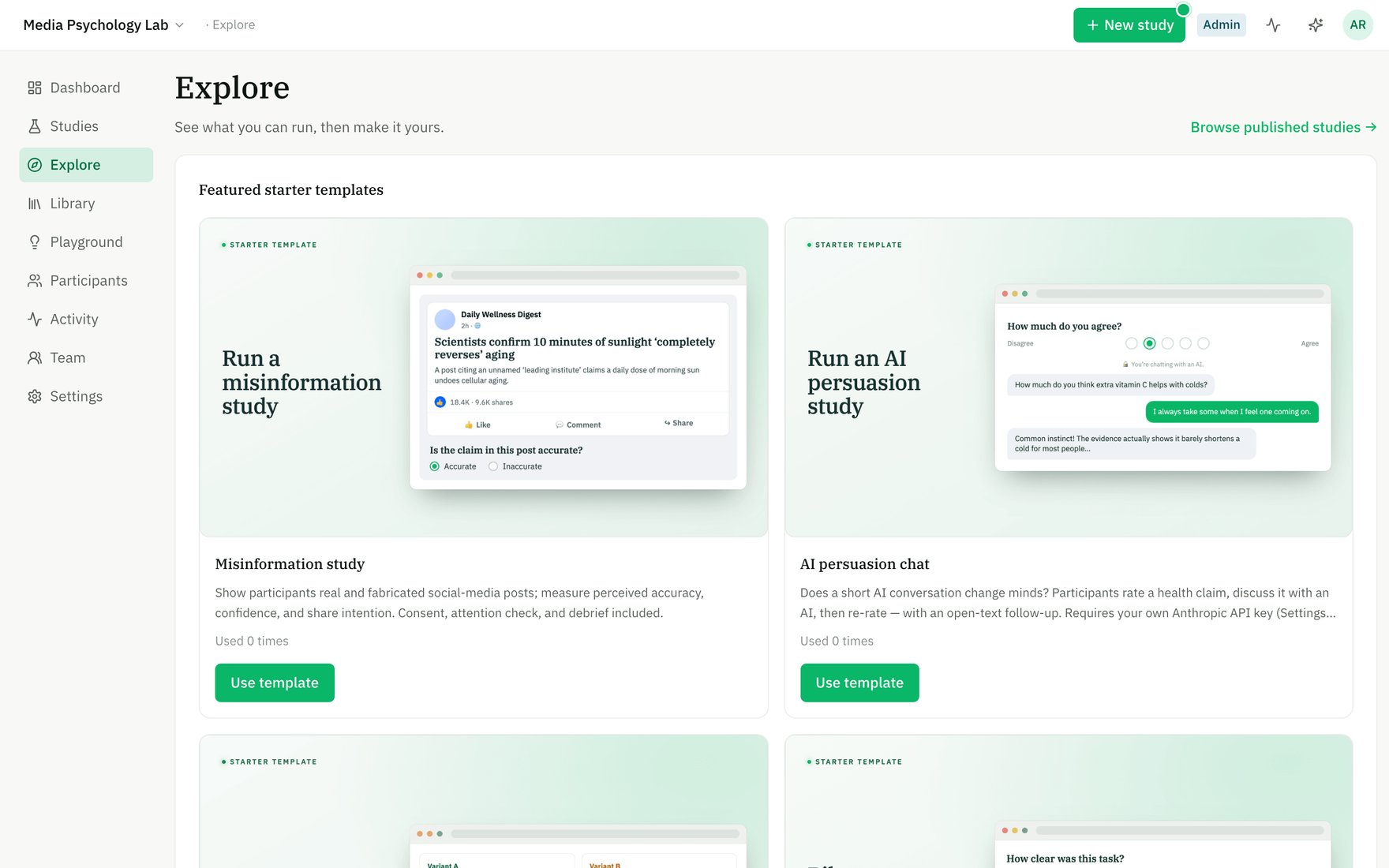
Start from the A/B test starter template on Explore.
Editing it for your study
1
Replace the two stimulus screens
Open the Version A and Version B screens and swap the placeholder text for the two messages, images, or framings you’re comparing. Keep everything else about the two screens identical so the wording is the only difference.
2
Adjust the measures
Edit, add, or remove outcome blocks — every participant sees the same measures, so they stay comparable across arms.
3
Check the assignment in Preview
Use Live preview to confirm each arm sees the right stimulus. Preview responses don’t count toward results.
Random assignment
Two plain-language controls sit above your conditions in the Builder’s Conditions panel, and together they decide how arriving participants are split across the arms. Group sizes — how big each arm should be relative to the others:- Equal — every arm the same size. The panel shows each arm’s expected share (e.g.
≈50%for two arms). - Custom — set each arm’s share as a percentage. Use this to skew the split deliberately (e.g. send 20% to a pilot arm), or for any non-even design. A running total nudges you when the shares don’t add up to 100%.
- Simple random (default) — each participant is drawn independently by weighted random assignment over the group sizes. With equal sizes that’s a coin flip per person, so the split is even in expectation, not a hard quota. Natural sampling variance means the arms won’t always end up exactly equal — the smaller your sample, the larger the wobble.
- Balanced — the app keeps the arms even as participants arrive, using permuted-block assignment: it fills randomly-ordered blocks sized to your ratio (equal two-arm → blocks of 2; a 1:2 split → blocks of 3), so every time a block completes the arms are back in exact proportion. The order within each block is still random, so assignment stays unpredictable for any individual participant. The panel tells you the block size (“evens out every N participants”).
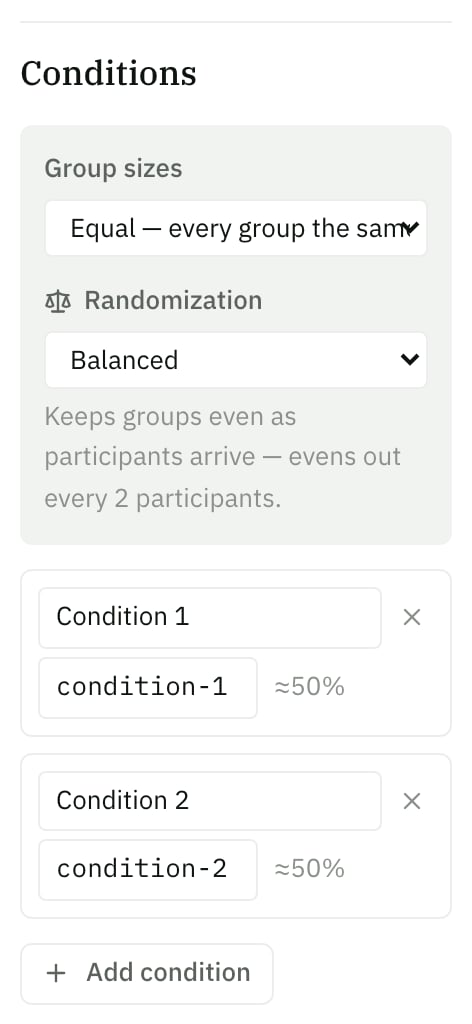
The Conditions panel: Group sizes and Randomization sit above the arms, and each arm shows its share as a percentage.
Beyond two arms — conditional visibility
An A/B test assigns participants to fixed conditions upfront, but you can also gate blocks dynamically based on earlier responses. Conditional visibility lets you show or hide any block depending on what a participant answered in a previous block — without needing separate conditions. For example:- If a participant answers “yes” to a question, show them a follow-up; if “no”, skip it.
- If they score above a threshold on a pretest, show the advanced version; below it, show the simplified one.
- If they click a specific region of an image, reveal a detail block; otherwise hide it.
Factorial designs with variants
Beyond simple A/B, you can test multiple factors at once — factorial designs where participants are split across all combinations of levels. If you’re comparing tone × length × image style, that’s 3 factors that might produce 2×2×2 = 8 cells. In the Builder, open the Variants section to define factors (e.g. “Tone”, “Length”) and their levels (e.g. “Formal” / “Casual” for Tone, “Short” / “Long” for Length). Then bind fields from your blocks — perhaps the message text, an image, or a number — to each factor. Each time a field varies, you specify its value for every level. When the study runs, each participant is randomly assigned one combination — one level from each factor. The exported dataset includes avariant_combination column so you can compare outcomes across cells. Shared content (blocks, measures) stays the same; only the bound fields change.
Variants work independently of conditions — you can have variants and conditions in the same study, giving you a hybrid design (factors nested inside or crossed with arms).
Recruiting a balanced sample on Prolific
From the Run stage, connect Prolific and create a study with a single target N. Prolific recruits that many participants to your one recruitment link; the app then assigns each arriving participant to a condition using the Randomization method you chose above. The Running view flags a study as imbalanced when the gap between the smallest and largest arm exceeds 20% of the largest — most useful under Simple random, where drift is expected; a Balanced study should rarely trip it.Reading results by condition
The study Results break down per condition: each arm’s name and its completed-response count, plus per-question summaries (means for numeric items, option counts for categorical, counts for text). The exported dataset tags every response with the condition the participant was assigned, so you can compare the arms directly in your own analysis.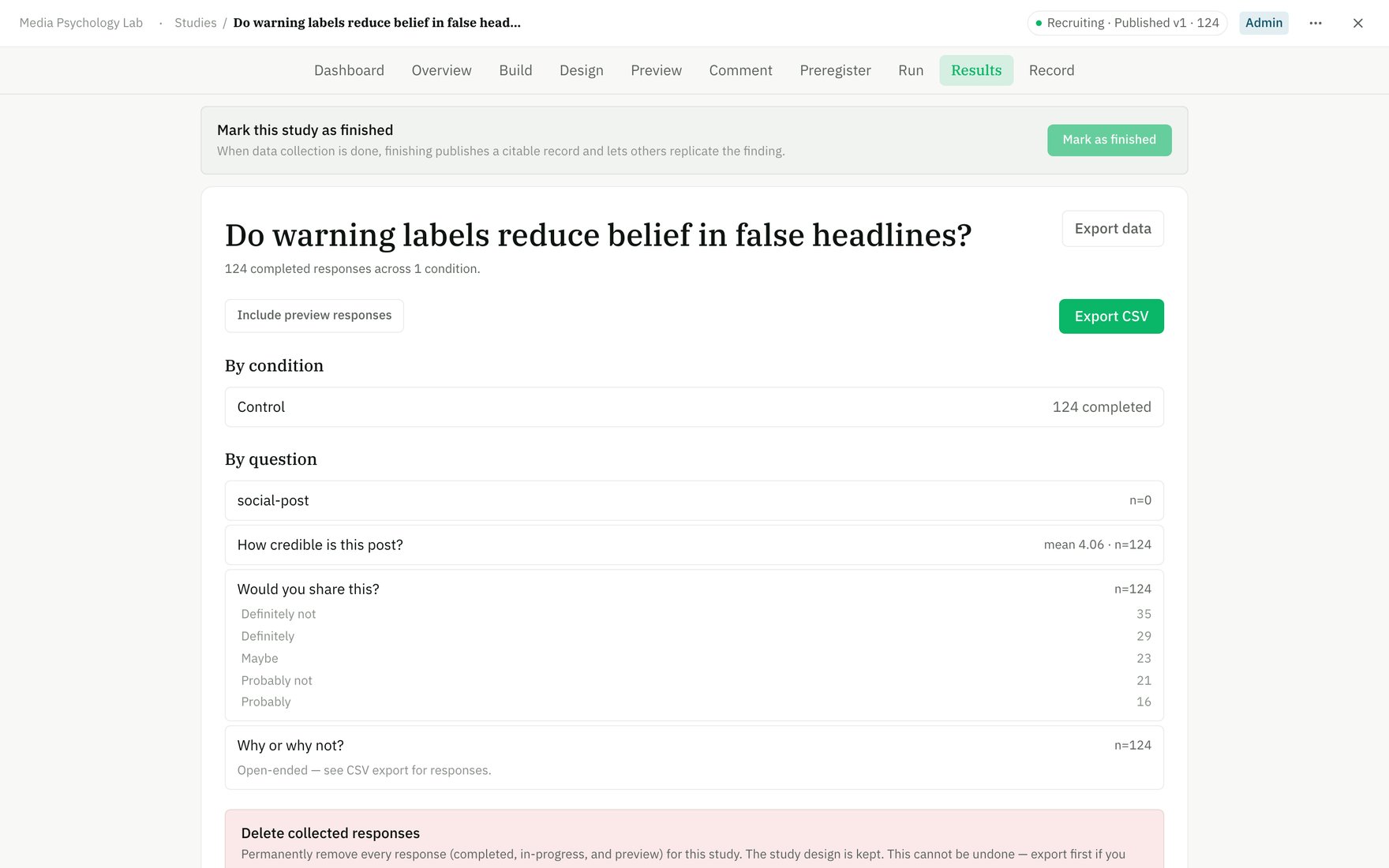
Results break responses down by condition, with per-question summaries.