Replicate vs. Use as template
The same copy machinery powers two different intentions, and the gate differs:- Replicate — you’re reproducing a finding. This is for finished studies. Cross-workspace replication is only offered once the original is marked finished; you’re standing on a completed result, not borrowing a work-in-progress.
- Use as template — you just want to start from someone’s design without claiming a replication. This shares the same copy step but skips the finished-study gate, so you can build on an unfinished but frozen study.
Duplicating a study within its own workspace is always open — that’s iteration on your own work, not a scientific replication, so it carries no finished or frozen requirement.
What gets copied
Replicating copies the whole protocol of the original’s pinned version into a fresh Draft in your workspace:- Blocks — every screen/measure, with their instance IDs preserved, so your copy lines up with the original block-by-block for comparison.
- Conditions — the random-assignment arms (slug, name, allocation weight, order) are recreated on your version.
- Screen groups — carried over (minus any link to the original workspace’s custom modules).
- Overview — the study’s documentation (abstract, hypotheses, method sections).
- Theme — the participant-facing look.
- Consent — the consent screen configuration.
- Title and tags — as a starting point you can rename.
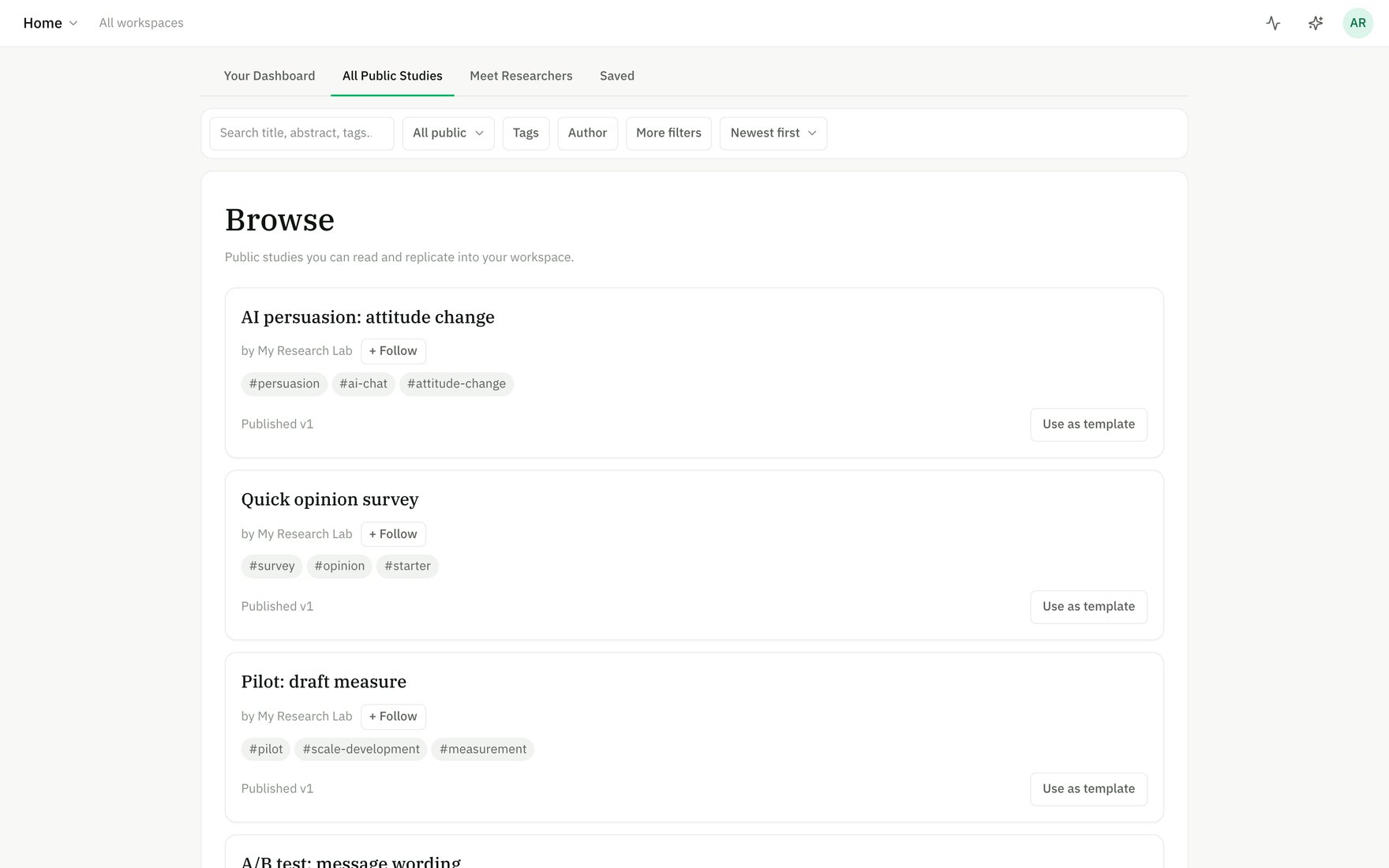
Browse published studies and replicate any of them into your workspace.
Who can replicate it — forkability
Every study has a forkability setting (set by the owning workspace) with three values:
Making a study public (so others can replicate it) requires a frozen version — you can’t offer a moving draft to the world. Setting it back to private is always allowed.
The freeze gate
You can only replicate a citable version, never a live draft:- A cross-workspace replication requires the original to have a frozen version — one that’s been preregistered or published. The app pins that latest frozen version as the thing you replicated.
- The one carve-out: a member of the same workspace can duplicate their own unfrozen draft — because that’s iterating on your own work, not replicating someone else’s finding.
Declaring the kind of replication
When you replicate, you can declare the kind — and you can change it later from the replication banner in the Builder:- Direct replication — reproducing the original as faithfully as possible.
- Conceptual replication — testing the same hypothesis with different methods or materials.
- Extension — building beyond the original.
Divergence and drift
Run the copy as-is to reproduce the original. The moment you start to adapt it, the app tracks how your copy diverges from the pinned original:- Each block that you change reads as modified; blocks you add read as added; blocks you remove are counted as removed.
- The replication banner in the Builder summarizes this live (“3 blocks diverged (1 removed)”) and links to a side-by-side compare against the origin.
- You can attach a short divergence note to any changed block, documenting why it differs — these rationales flow into a declared replication’s preregistration.
Divergence is computed on the fly from the pinned snapshot versus your working copy — it’s never stored, so it can’t go stale. Reviewers always see the true, current difference.
Comparing against the original
From the replication banner, Compare ↗ opens the whiteboard compare with your working copy on one side and the pinned original on the other — added/removed/modified blocks, with field-level change summaries and a GitHub-style protocol-text diff. (You can only see the original’s protocol if it’s public or in your workspace.)Lineage
Every replication remembers its parent (the study it was copied from) and the exact version it pinned. From that, the app builds the replication family:- Parent — the study you replicated, with a diff against it (withheld if you can’t see its protocol).
- Children — every study replicated from yours.
- Ancestors and descendants — the full tree, root-first, with private studies in other workspaces shown without their titles.
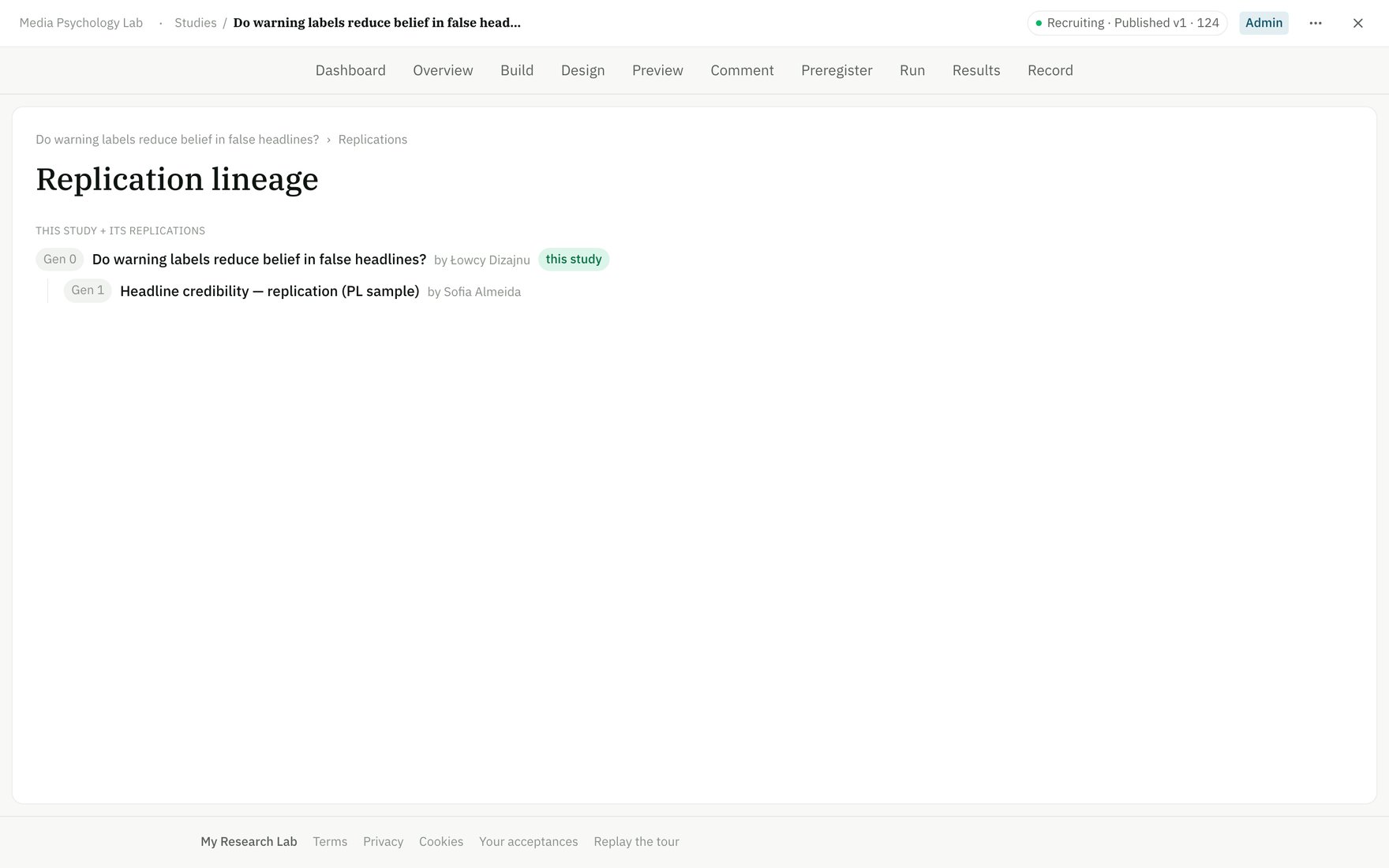
Every study keeps its replication lineage — the original and the studies derived from it.