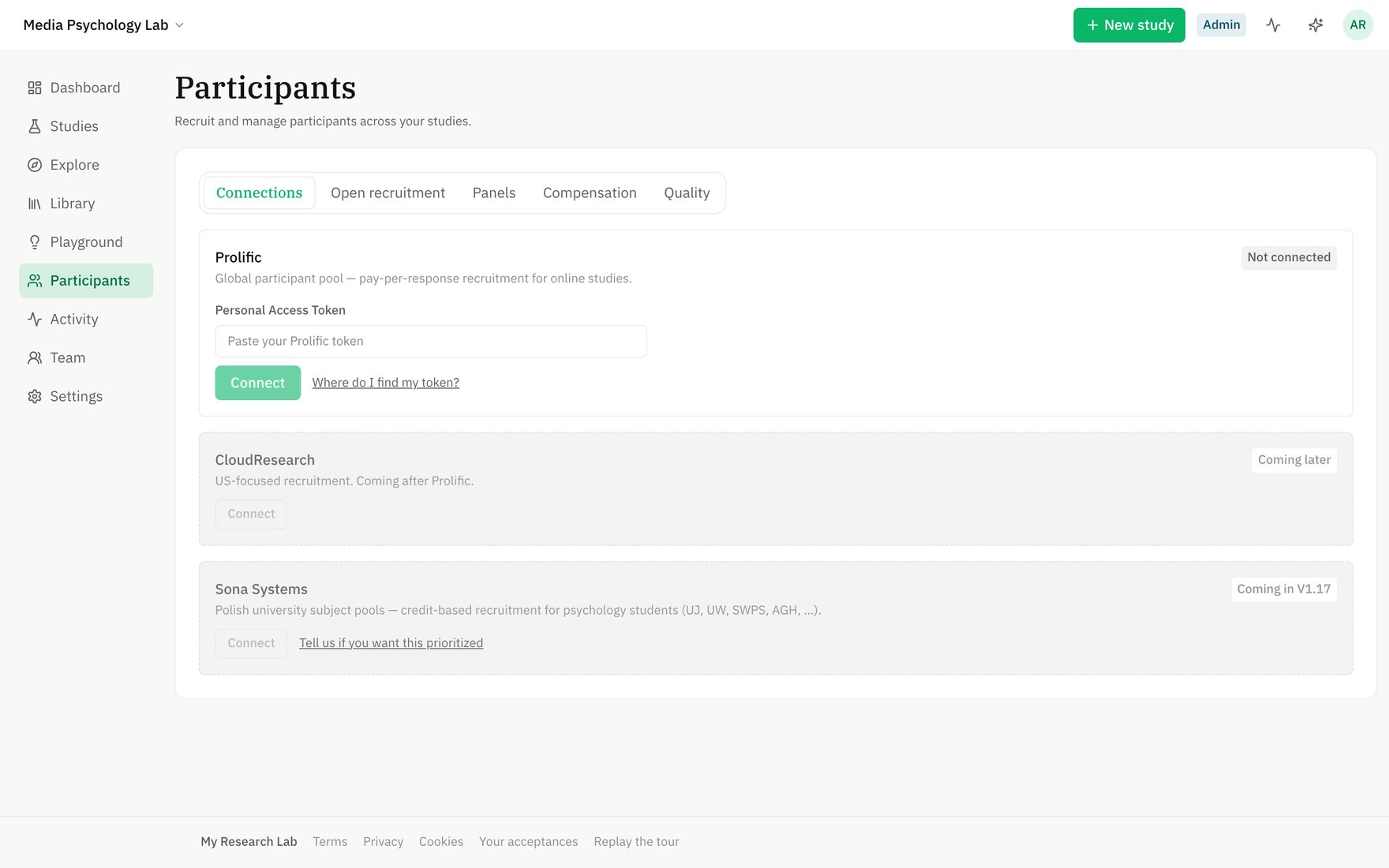
The Participants area — connections, open recruitment, panels, compensation, and quality.
The five tabs
Connections
Connect recruitment providers so you can launch studies on their participant pools. Each provider is authenticated once per workspace — all studies in the workspace draw from the same connection. Currently live: Prolific (global participant pool, pay-per-response). Coming soon: CloudResearch (US-focused) and Sona Systems (credit-based recruitment for university psychology departments). To connect a provider, paste your Personal Access Token (PAT) from your provider account. The app stores the token securely and uses it to access your account and push study details on-demand. Live updates — once connected, you can enable webhooks so Prolific notifies the app the moment submissions arrive or study status changes. When on, participant counts and recruitment progress update without a page refresh. When off, the app polls Prolific every ~10 minutes and reconciles state on page load.Open recruitment
A read-only provider-side view of every study currently recruiting on Prolific in your workspace. For each study, you see:- Submission counts broken down by status: Started, Awaiting review, Approved, Rejected, Timed out
- The reward amount and allocation (how many spots are filled)
- Links to manage the study on Prolific or jump to the Run stage in the app
Panels
Panels are workspace-scoped cohorts of past participants, identified by their anonymous provider ID. Use panels to re-recruit known participants in a new study or exclude them to prevent cross-contamination. Create a new panel by name and description, then add members by bulk-importing submissions from a study you’ve already run. When adding members, you can filter by completion status (Completed — approved + awaiting review; Approved only; Everyone who started). Members are always displayed by opaque ID — the app never exposes personally identifiable information. Each member’s record notes which study they first appeared in. Delete a panel to remove its membership tracking; the participants themselves are unaffected.Compensation
A read-only mirror of participant spend synced from your provider (Prolific charges you directly, not through the app). All figures are grouped by currency — no FX blending. Spend overview:- Total spend (all-time, last 30 days) broken down by currency
- Count of participants paid
- Average cost per participant
Quality
Cross-study submission quality review and response management. Flag patterns — fast completion, straight-lining, duplicate participants, failed attention checks, possible spam — are surfaced in a centralized queue alongside inline response previews so you can make informed decisions. Flags and resolution:- Each flag shows its kind (e.g., “Straight-lining”), severity (high/medium/low), the study it came from, the participant’s opaque ID, and any detail
- Expand any flag to view the participant’s response — all item answers are shown so you can spot the problem yourself
- Resolve a flag by approving (marks them complete on the provider — they are paid), rejecting (marks incomplete on the provider — they are not paid, and Prolific notifies them with your reason), sending a bonus, or dismissing (records your decision, no payment action)
- Needs review — open flags awaiting your decision
- Resolved — flags you’ve already approved, rejected, dismissed, or bonused
Role-based access
- Owners and admins can connect/disconnect providers, set budgets, enable auto-approval, and resolve quality flags
- Members can view all Participants tabs but cannot make changes
- Viewers can see Participants but have no edit access