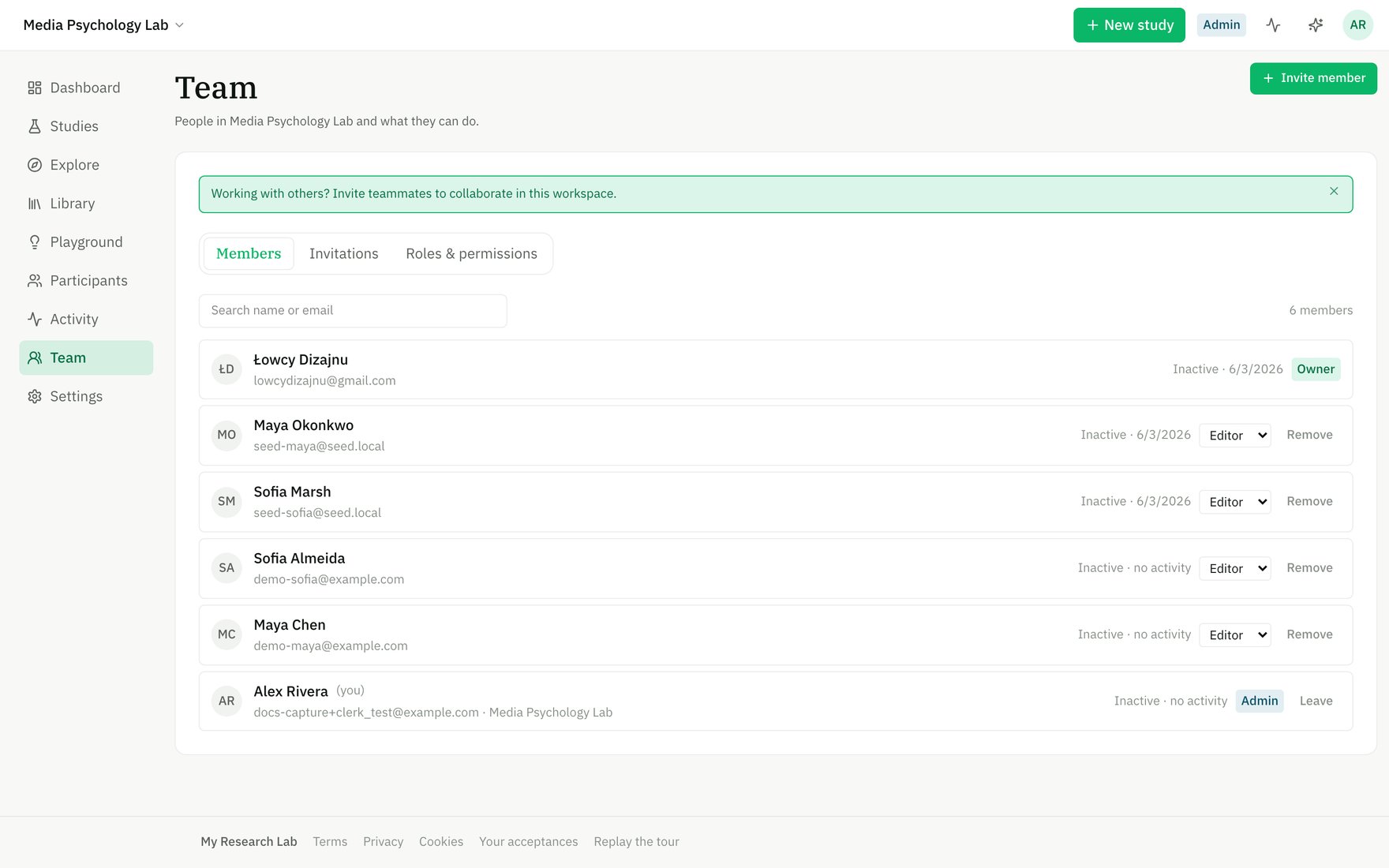
The Team page — members and their roles.
The four roles
Each role unlocks different capabilities across the workspace:
Owner and Admin can both manage the team (invite, remove, change roles, transfer ownership). The difference: only Owners can promote someone to Owner or Admin, and Admins can only invite up to Editor. A workspace must always have at least one Owner.
Invite members by email
From the Team page, click Invite member (Owners and Admins only).- Paste email addresses — one per line or comma-separated.
- Choose the role (Owners can grant any role; Admins can invite up to Editor).
- Add an optional personal message.
- Click Send invitation.
Invitations expire if unused. You can resend an invitation from the Invitations tab to reset its age, or revoke it entirely.
Manage member roles
From the Members tab, Owners and Admins can change a member’s role directly by clicking the role chip next to their name. Changes take effect immediately. Demoting the last Owner is blocked — transfer ownership first if you need to step down.Transfer ownership
Only the current Owner can transfer ownership. This is an atomic hand-off:- From the Members tab, find the member you want to promote.
- Click the menu (⋯) and select Transfer ownership to this member.
- You become Admin, and they become Owner.